
 Deutsch
S3 Upload for Gravity Forms
Gravity Forms S3 Upload: Privately Offload Form Files
Application materials, project files, and documents from customer inquiries don't have to take up permanent space on your WordPress web hosting server. With S3 Upload for Gravity Forms You can automatically transfer new file uploads from Gravity Forms to a private Amazon S3 bucket or to a compatible S3 storage provider. You decide which forms and upload fields are transferred and how long shared download links remain valid.
This plugin extends the familiar file upload fields in Gravity Forms. After the standard form validation, files are transferred in the background. Only after the transfer and the size of the deleted file have been successfully verified is the local copy deleted. If the transfer fails, the file remains on the local machine and can be processed again.
49 € (including tax) for a productive website. Included are one year of support and plugin updates starting from the date of purchase. After that, you can extend your subscription for another year for €49 (including tax). No subscription, no automatic renewal. The most recently installed version will remain usable after the subscription expires.
Private file storage with controls for each form
- Amazon S3 and other S3-compatible services: Use AWS or configure your own HTTPS endpoint and the corresponding signature region.
- Multiple storage profiles: Manage different buckets or providers and assign the appropriate profile to your forms.
- Global guidelines and individual rules: Enable data storage for specific forms or for all forms that include file uploads. Override the profile, field selection, folder structure, link lifetime, and deletion behavior for each form.
- Native Gravity Forms Uploads: Standard single and multiple file upload fields are supported. File type checking and form validation are handled by Gravity Forms.
- Background transmission: Retry attempts in case of errors, processing larger files in multiple parts, and local storage until the transfer is successful.
- Protected Downloads: Private buckets, access with permission checks in the backend, and time-limited and revocable sharing links for notifications.
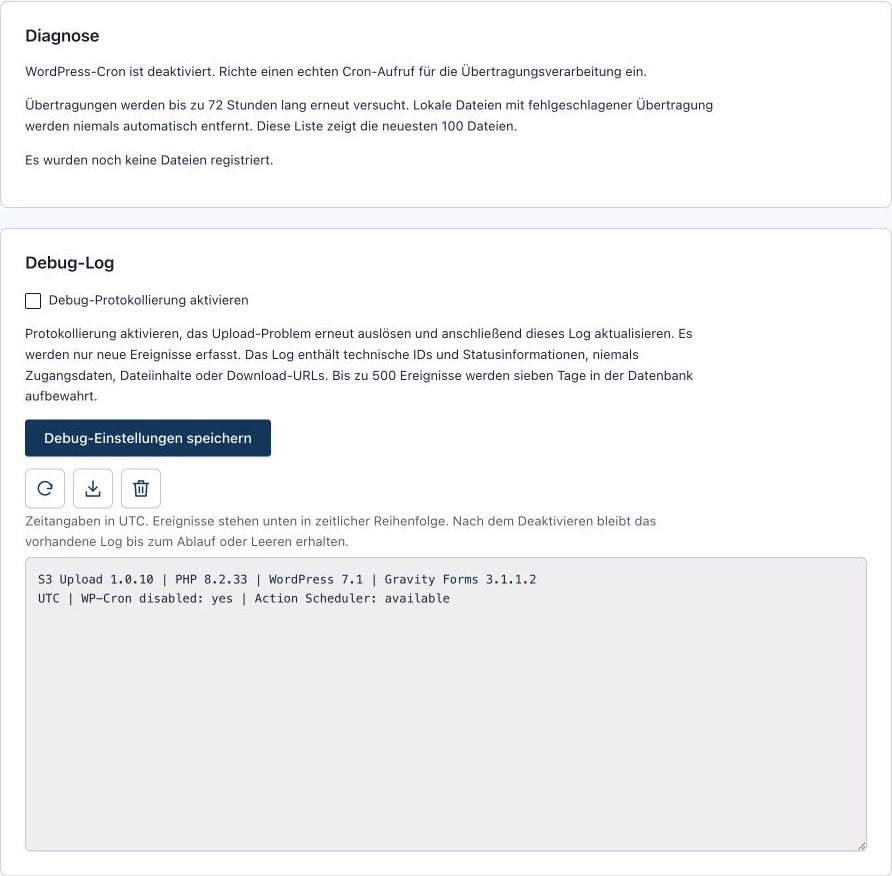
- Transparent Operations: File status, retry actions, and optional debug logging directly in the Gravity Forms admin panel.
- Conscious Deletion Behavior: Choose whether associated S3 files should be deleted permanently or retained on S3.
For which projects does this make sense?
This plugin is ideal for businesses, agencies, and website operators who regularly receive files via Gravity Forms—such as documents related to project requests, job applications, photos for service requests, or documents for customer processes. This offloading is particularly helpful when form files would otherwise remain permanently on the web hosting server and need to be managed separately.
You retain control in WordPress and choose the storage provider yourself. The files are transferred to the provider you have configured. The plugin does not contain any telemetry. The choice of storage location, access permissions, retention periods, and any necessary agreements with your provider remain part of your own setup.
Here's How an Upload Works
- A visitor submits the form along with a file. Gravity Forms checks the upload and initially saves it locally.
- The plugin detects the activated S3 rule and schedules the transfer in the background.
- The file is transferred to private storage. The plugin checks the result before deleting the local copy.
- Downloads are handled via a secure WordPress link. When access is authorized, the plugin creates a short-lived, signed redirect to the storage provider.
Important: This is not a direct browser upload to S3. PHP, hosting, and Gravity Forms limits still apply. Existing older uploads will not be automatically migrated. The plugin does not publish files via a CDN and does not send managed files as email attachments.
Requirements and Package Contents
- WordPress 6.9 or later.
- PHP 8.2 or later using cURL, OpenSSL, Fileinfo, SimpleXML, and iconv.
- Active Gravity Forms, version 3.1.1 or later; sold separately and not included.
- A private bucket on Amazon S3 or a suitable S3-compatible provider, including your own login credentials.
- Outbound HTTPS connections, valid certificates, and public IPv4 resolution of the storage endpoint.
- Sufficient temporary local storage, as well as properly functioning WordPress background tasks via WP-Cron and Action Scheduler.
The supported upper limit is 100 MiB per file (104,857,600 bytes). Any lower limits set by the hosting provider, PHP, or the respective form field take precedence. Storage, retrieval, and transfer costs charged by the S3 provider are not included in the plugin price.
You'll receive the installable plugin ZIP file, the German and English plugin interfaces, this German-language manual, and one year of access to available plugin updates and support. The current version provided is 1.0.10. Updates are installed manually as ZIP files; this version does not include an automatic WordPress update feature.
Instructions: Connecting Gravity Forms to Amazon S3
The following setup guide will walk you through the process from installation to your first validated upload. Start by setting up a test form and use non-critical sample files before migrating your production forms.
1. Download and install the plugin
- After your purchase, download the plugin ZIP file from your Customer Account down.
- Open in WordPress Plugins → Add Plugin → Upload Plugin and select the ZIP file as is.
- Install and activate the plugin. Gravity Forms must also be installed and activated.
- Open Forms → Settings → S3 Upload.
This version of the plugin does not include a field for entering a store license key. Your store license manages your access to support and downloads; the installed extension does not require online license activation.
2. Set up a private AWS S3 bucket
Create a separate S3 bucket in your AWS account for the form files and select an appropriate region. For Frankfurt, for example, the region ID is eu-central-1. Make a note of the exact bucket name and region. The bucket must already exist; the plugin does not create it.
Keep public access blocked. Do not use public read permissions, a public bucket website, or public sharing of uploaded objects. Access should be granted exclusively through the intended permissions and signed links. If you use encryption, versioning, or retention policies provided by the service provider, take into account their additional permissions and how they affect deletion.
3. Set up access with the required permissions
Use a separate access account that is restricted to the designated bucket. The plugin requires the following at the bucket level: s3:ListBucket and s3:ListBucketMultipartUploads. The objects require s3:PutObject, s3:GetObject, s3:DeleteObject and s3:AbortMultipartUpload. When versioning is enabled, the following are also s3:GetObjectVersion and s3:DeleteObjectVersion required.
Restrict object permissions to the configured prefix, if you are using one. The connection test also needs access to its own scope under that prefix. .bm-connection-check. With KMS encryption, additional KMS permissions may be required. The mapping of API actions and permissions is described in the Official AWS documentation on S3 permissions.
Keep your access key and secret key secure. Enter them only in the designated profile fields, and never share them in screenshots or support requests.
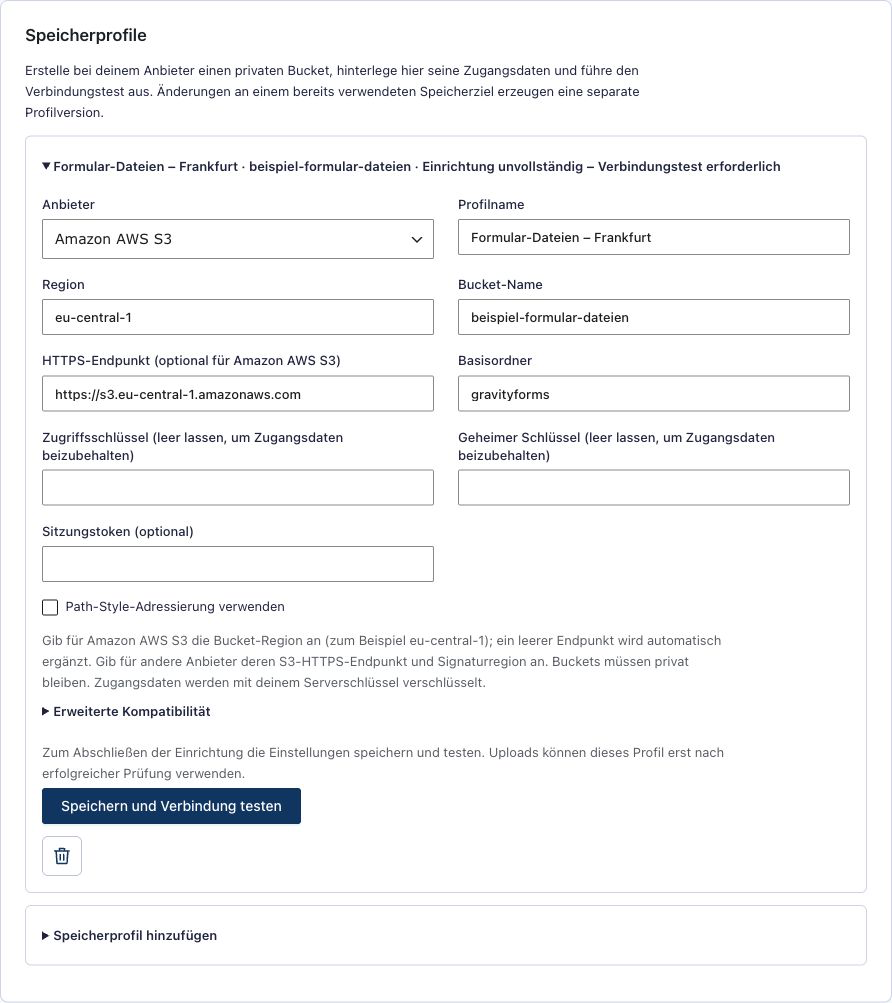
4. Create a cache profile and test the connection
In the S3 upload settings, open the section for adding a storage profile and fill out the fields:
- Name: a clear internal label, such as „Form Files – Frankfurt.“.
- Provider: „Amazon AWS S3.“.
- Region: the actual bucket region, for example
eu-central-1. - Bucket: the bucket name, without the URL and without subfolders.
- Endpoint: For AWS, this field can be left blank; the appropriate default endpoint is determined based on the region.
- Prefix: Optionally, a shared area such as
Gravity Forms. - Login credentials: Access Key and Secret Key; for temporary credentials, the session token is also required.
Click on „Save and Test Connection“. The test creates a small test object, verifies signed access and the rejection of unsigned access, and then removes the test object. Only a successful test confirms the basic connection. Any failed test should be resolved before the system is put into production.
5. Use Hetzner or another S3-compatible provider
Select a different service „Other S3-compatible provider“ and explicitly enter its HTTPS endpoint and the signature region. For example, with Hetzner, https://fsn1.your-objectstorage.com with the region fsn1 An example location. Always use the details of the bucket you actually created. For more information, see the Hetzner Object Storage Documentation.
Enable path-based access only if your provider or the bucket configuration requires it. The advanced checksum option offers MD5 or SHA-256 for single-part uploads; configure it according to your provider's specifications. Endpoints with custom ports, embedded credentials, URL parameters, or path prefixes are not supported. Private network endpoints, redirects, and proxies are not supported.
How to Check Compatibility Properly: Choosing an S3-compatible service does not guarantee that every provider will offer all features. In addition to the connection test, check your account to verify an upload larger than 8 MiB, a notification download, and the desired deletion behavior. Hetzner and other S3-compatible services were not practically tested with a provider account for this product design. The examples are not a substitute for a comprehensive test with your provider.
6. Set Global Preferences
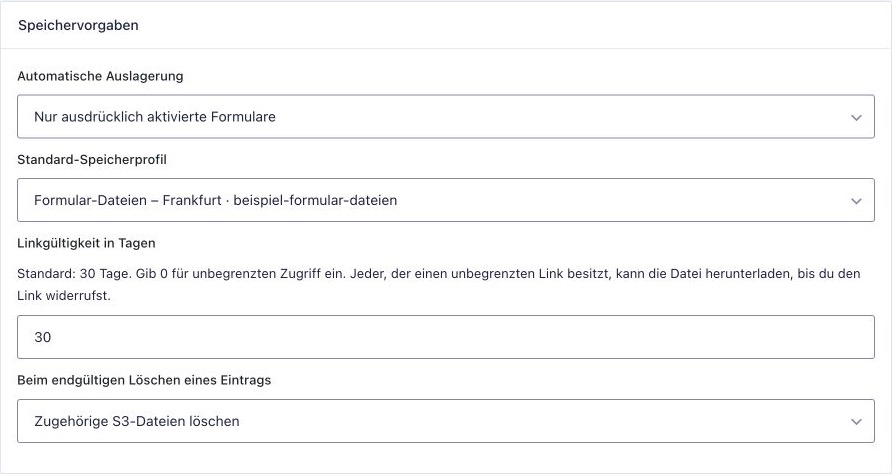
You'll find the global settings under "Storage Profiles." By default, only forms that have been explicitly enabled are included. This is a good starting point for a phased rollout. Alternatively, you can enable S3 storage for all forms that allow file uploads.
Select a default profile, the duration of the sharing links, and the behavior when an entry is permanently deleted. The default link duration is 30 days. The value 0 means "unlimited" and should only be selected intentionally. Save the global settings using the corresponding Save button.
7. Configuring a Form and Its Upload Fields
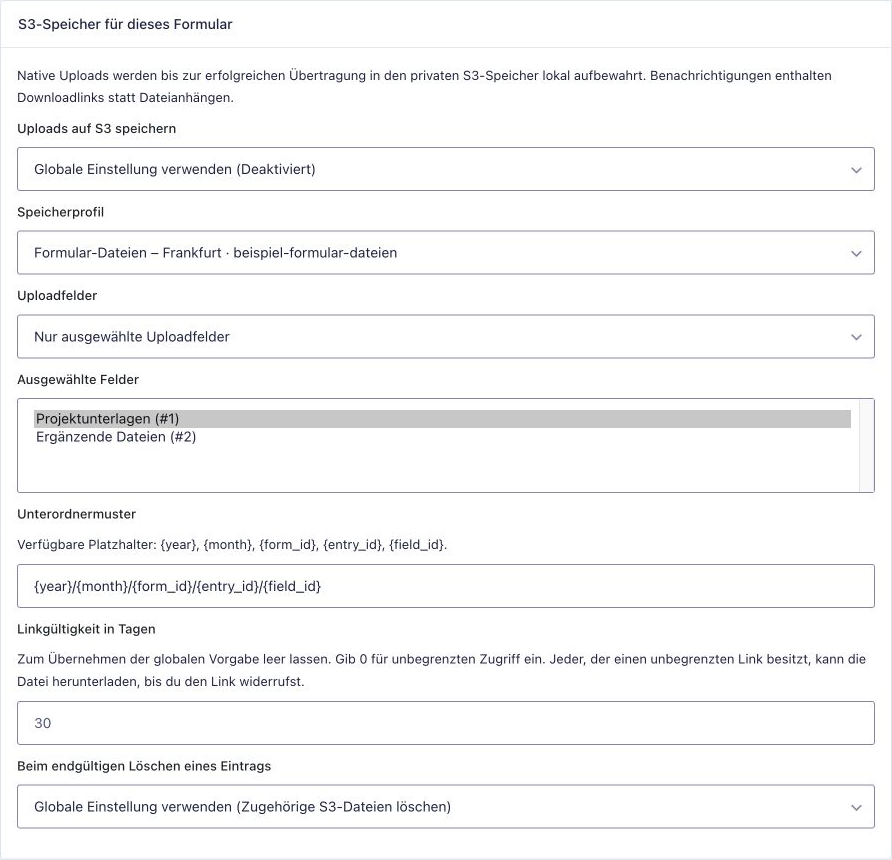
- Open the desired form in Gravity Forms and go to Settings → S3 Upload.
- Select whether the form should use the global settings, explicitly enable S3, or disable S3.
- Use the default profile, or select a different save profile for this form.
- Choose between all current and future upload fields or only selected fields. For the second option, select the desired file fields.
- If necessary, adjust the subfolders, link lifetime, and deletion rule, and save the settings.
The default subfolder structure is {year}/{month}/{form_id}/{entry_id}/{field_id}. This organizes files by year, month, form, entry, and field. Use the placeholders supported by the plugin; Gravity Forms merge tags are not supported here. In addition, the plugin uses random website and file identifiers to distinguish between objects.
8. Check Test Submissions and Notifications
Submit a small sample file using the form on the front end. Then check the entry, the S3 file management, and the bucket. Verify that the transfer has completed and that the download works. Repeat the test with a representative larger file and, if necessary, with multiple files.
For notifications, use the standard Gravity Forms output for the upload fields and verify that the email was actually delivered. Managed files are linked to, not sent as attachments. Do not share direct public bucket URLs.
Shared links are access keys: Anyone with a valid email link can access the corresponding file. Treat these links confidentially and set an appropriate expiration period. Backend downloads, on the other hand, require a logged-in user with permission to view Gravity Forms entries. An S3 redirect that has already been generated may remain valid for up to five minutes after it is revoked.
Operation, Troubleshooting, and Updates
Background Processing and File Management
The plugin uses Action Scheduler for data transfer. On websites with low traffic, it is recommended to set up a real cron job through your hosting provider so that WordPress background tasks are run regularly. An administrator can, for example, wp cron event run --due-now schedule this and also ensure that the Action Scheduler runs as usual.
The file management section in the S3 settings and on the respective entry shows the processing status. In the event of transfer errors, automatic retries are scheduled after 1, 5, 15, and 60 minutes, and subsequently every six hours, for a total of up to 72 hours. Failed local files are not automatically discarded. Once you’ve resolved the issue, you can restart processing.
Local Clipboard and Hosting
During processing, files are temporarily stored on the web server. Optionally, the plugin uses an additional, protected staging directory. For Apache and IIS, appropriate protection files are generated and checked. If this additional check fails, transfers from the original Gravity Forms directory will continue; the existing protection for that directory remains in effect.
For registered S3 files in the Gravity Forms directory, the plugin also creates file-specific Apache access control rules. Apache must allow these rules; Nginx does not process .htaccess files. If you're using Nginx, your hosting provider should block access via appropriate server rules or provide a writable staging directory outside the public web directory. The plugin settings show the paths used and notes on the optional constant BM_GF_S3_STAGING_DIR. Process any existing clipboards completely before changing their path.
Targeted Correction of Common Errors
- Access Denied: Check access credentials, bucket/object permissions, the prefix, and, if applicable, KMS permissions.
- Signature or region error: Check the bucket region, endpoint, signature region, and server time.
- Connection error: Check DNS, outbound HTTPS connections, certificates, and public IPv4 reachability.
- Upload remains in the queue: Check WP-Cron and Action Scheduler, and restart processing once the cause has been resolved.
- File too large: Form field limit, as well as
upload_max_filesize,post_max_sizeand check other hosting limits. The plugin's upper limit remains 100 MiB per file. - Cannot delete: Check the provider's deletion permissions, versioning, Object Lock, and retention policies.
To help pinpoint the problem, you can temporarily enable the optional debug log, view it in the settings, and download it if necessary. Send it to the Support the plugin, WordPress, PHP, and Gravity Forms versions, as well as the error message and the steps involved. Do not share any login credentials, confidential uploads, or valid sharing links.
Delete, Keep, and Deactivate
Moving an entry to the trash temporarily preserves the files. Only upon final deletion is the selected rule applied: delete S3 files or keep them on S3. When a file is detached, its shares are revoked. Retained files remain registered for later explicit cleanup. The plugin only processes its registered objects or object versions and does not empty the entire bucket.
Normal deactivation and uninstallation preserve the data. However, the plugin download links only work as long as the plugin is active and WordPress remains accessible. An explicitly confirmed cleanup is a separate process and can permanently remove registered files. It is not a necessary step for an update.
Install Updates and Secure Your Login Credentials
During your active subscription period, download the latest ZIP file from your customer account. Back up your website and, if possible, test the new version in a staging environment first. Then upload the ZIP file using the WordPress plugin upload feature and replace the existing version. You do not need to clean up or delete your S3 files beforehand.
Login credentials are stored encrypted using AES-256-GCM. If no custom key is provided, the plugin derives the key from the WordPress authentication salts. If these change, the original values must be restored, or the stored login credentials must be re-entered. Administrators can set an independent key before saving via BM_GF_S3_ENCRYPTION_KEY Configure and back up securely.
Changes to a storage destination do not automatically move existing S3 objects. Keep any profile revisions and valid access credentials that you still need. Schedule separate backups for WordPress and the object storage; migration is not a complete backup solution.
Frequently Asked Questions About Gravity Forms and S3 Uploads
Can I move old Gravity Forms uploads to S3?
Automatic migration of existing legacy files is not included. Support is provided for new submissions as well as new local files added to existing entries.
Are files uploaded directly from the browser to S3?
No. Uploads go through Gravity Forms and are temporarily stored locally. The S3 transfer then takes place in the background. Therefore, hosting and PHP limits remain relevant.
Can I use multiple buckets and different forms?
Yes. Create multiple storage profiles and select the appropriate one for each form. You can also select individual upload fields and leave other fields set to the default local storage.
What happens if the storage provider is unavailable?
Failed transfers retain the local file and are retried. Check the status and resolve the issue before local storage runs out. The plugin does not override the general limits or potential errors of the form or web server.
Are the files publicly accessible?
The bucket must be private. The plugin checks this during the connection test. However, email sharing links grant their owner access until they expire or are revoked. Therefore, choose an appropriate duration and treat the links confidentially.
Does the plugin work with any S3-compatible platform?
It uses the standard S3 operations for writing, reading, checking, deleting, and multipart uploads. Individual services may differ. Check with your specific provider and test the selected settings using actual test files. We do not make a blanket guarantee for all S3 services.
Are uploads sent as email attachments?
No. The files managed by the plugin are made available via download links. Attachment delivery is not a feature of the plugin.
Do custom upload fields from other extensions work?
This support applies to native Gravity Forms file upload fields. Custom upload fields or special integrations with other plugins are not included.
Can I use this plugin in WordPress Multisite?
Technically, websites within a multisite installation are managed separately: profiles, file registries, and background tasks are isolated for each website. There are no network-wide shared storage profiles. The single license offered is valid for one production website; each additional production website requires its own license.
Does the plugin automatically make a form compliant with data protection regulations?
The plugin offers private storage profiles and customizable download links. All processing continues to depend on your forms, permissions, provider decisions, and retention policies. There is no automatic certification or blanket guarantee of data protection.
What happens after the first year is over?
The installed version will remain usable. Your entitlement to further support and new plugin downloads ends at the end of the term. By manually renewing for €49 (including tax), you’ll receive these services for another year. No payments will be automatically charged.
A website, one year of support and updates
The purchase price is €49, including VAT, for a live website. For one year from the date of purchase, you'll have access to the provided plugin updates and support via email or through our Support Form. Gravity Forms, hosting, and S3 storage are separate services.
The renewal is optional and costs €49 (including tax) for another year. This is not a subscription. If you do not renew, your access to support and additional plugin downloads will end; however, you can continue to use the version you last installed. An active subscription is required to receive new updates. You can manage your renewal through your Customer Account; If you have any questions, our support team is here to help.
The plugin is a standalone extension developed by Bajorat Media. Gravity Forms and the storage providers mentioned are products of their respective vendors and are not included in this purchase.
Related products
-
 SoftwareSelect options This product has multiple variants. The options may be chosen on the product page
Divi DSGVO & Google Fonts
The Divi GDPR & Google Fonts Plugin is a fully automated solution designed to better align the Divi theme and its features with the GDPR. The…
-
 SoftwareAdd to cart
simpleCE v.2 (mini CMS)
simpleCE (simple Content Editing) is a simple content management system with a front-end editing mode based on PHP and MySQL. This means you can edit your content,…
-
 SoftwareSelect options This product has multiple variants. The options may be chosen on the product page
Automatic Google Fonts Embedder
Our plugin, "Automatic Google Fonts Embedder for WordPress," automatically solves the problem with Google in just a few seconds and without any complicated steps…